Leveraging the Model Context Protocol (MCP) for Seamless S3 Integration and Text Summarization
In today’s data-driven world, processing and extracting insights from documents at scale is a common challenge. Whether you’re dealing with legal contracts, research papers, or customer feedback logs, automating summarization can save hours of manual work. That’s where this project comes in: an AI-powered document processing pipeline built on AWS, using Amazon Bedrock for AI models and ECS Fargate for serverless orchestration.
My GitHub repository (AI-Document-Processing-ECS-Bedrock) demonstrates how to implement the Model Context Protocol (MCP) to enable AI models to fetch and summarize text files stored in Amazon S3. It’s a proof-of-concept (PoC) that combines secure storage, event-driven triggers, and scalable compute — all wrapped in a robust, monitored architecture.
In this post, I’ll walk you through the project’s architecture, setup, testing, and best practices. Whether you’re an AWS enthusiast or just dipping your toes into AI infrastructure, you’ll find actionable insights and code snippets to get started.
Why This Project? The Motivation Behind It
Imagine uploading a text file to S3, and moments later, receiving a concise summary generated by a powerful AI model like those in Amazon Bedrock. No manual intervention, no complex ETL pipelines — just seamless integration.
The core idea is the Model Context Protocol (MCP), a standardized way for AI models to interact with external data sources. Here, we use it to bridge Bedrock with S3. This PoC is serverless, secure, and observable, making it ideal for production-grade applications. It’s built with Terraform for Infrastructure as Code (IaC), Docker for containerization, and GitHub Actions for CI/CD.
If you’re building AI apps that need to process documents, this setup can be a game-changer. Let’s dive into the architecture.
The Architecture: A High-Level Overview
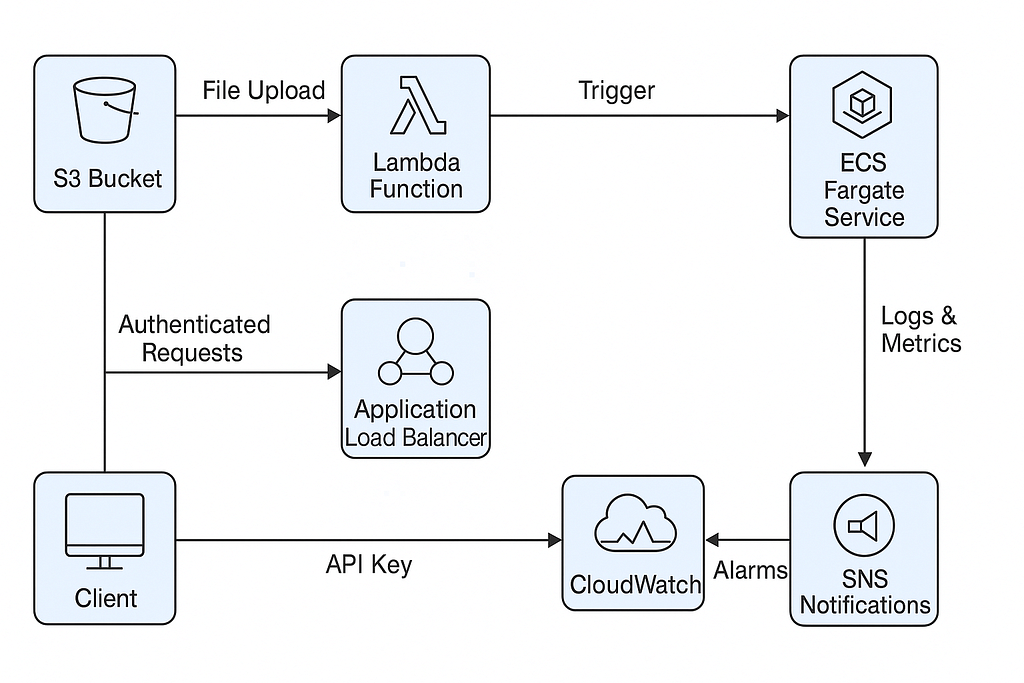
The system is designed for scalability and security, using AWS managed services to minimize operational overhead. Here’s a visual representation of the architecture:
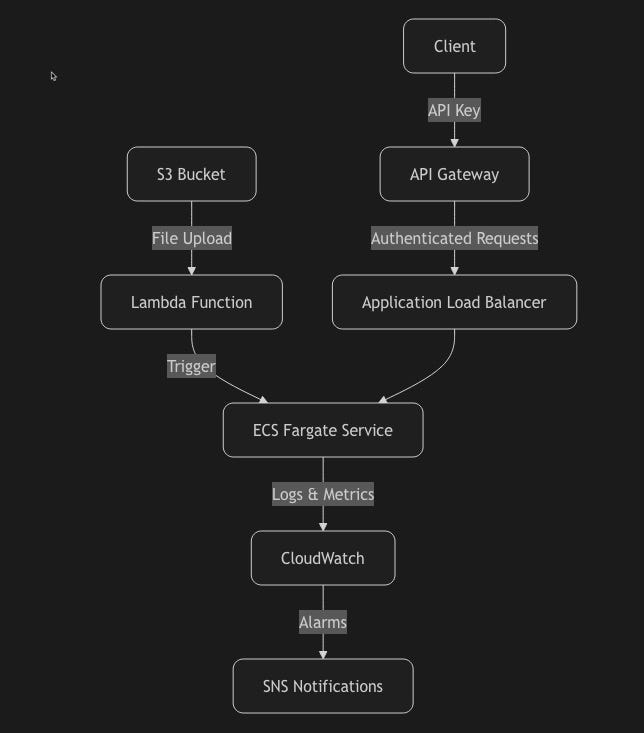
Key components:
- S3 Bucket: Stores text files with server-side encryption (SSE) for data at rest.
- Lambda Function: Triggers on S3 uploads, kicking off ECS tasks for processing.
- ECS Fargate Service: Runs the MCP server in containers, auto-scaling based on demand.
- API Gateway: Exposes secure endpoints with API key authentication and rate limiting.
- Application Load Balancer (ALB): Distributes traffic to ECS tasks.
- CloudWatch: Handles logging, metrics, and alarms.
- SNS: Sends notifications for alerts.
This setup ensures that file uploads trigger AI summarization, with everything monitored and secured.
Prerequisites: What You’ll Need to Get Started
Before diving into deployment, ensure you have these tools and access:
- An AWS account with IAM permissions for ECS, S3, Lambda, etc.
- Terraform v1.2.0+ for infrastructure provisioning.
- AWS CLI v2.x configured with your credentials.
- Docker 20.10+ for building the MCP server image.
- Git for cloning the repo.
- jq for JSON parsing in scripts.
No prior AI experience is needed — Bedrock handles the heavy lifting!
Step-by-Step Setup: From Clone to Deployment
Let’s set this up. I’ll include code snippets for each step.
1. Clone the Repository
Start by grabbing the code:
git clone https://github.com/soodrajesh/AI-Document-Processing-ECS-Bedrock.git
cd AI-Document-Processing-ECS-Bedrock
2. Configure Environment Variables
Copy and edit the example files:
cp .env.example .env
# Edit .env with your values (e.g., AWS_REGION=eu-west-1)
cp terraform.tfvars.example terraform.tfvars
# Edit terraform.tfvars, especially container_image:
# container_image = "<your-account-id>.dkr.ecr.<region>.amazonaws.com/mcp-dev-mcp-server:latest"3. Build and Push the Docker Image
This script builds the MCP server container and pushes it to Amazon ECR:
./scripts/build_and_push.shMake sure your Dockerfile is set for the right platform (e.g., linux/amd64 for ECS compatibility).
4. Initialize and Apply Terraform
Provision the infrastructure:
terraform init
terraform plan -out=tfplan
terraform apply "tfplan"
This creates the S3 bucket, ECS cluster, API Gateway, and more.
5. Confirm SNS Notifications
After deployment, check your email for an SNS subscription link and confirm it to receive alerts.
6. Test the API
Grab the outputs and test the endpoints:
API_ENDPOINT=$(terraform output -raw api_gateway_endpoint)
API_KEY=$(terraform output -raw api_key)
# Health check
curl -H "x-api-key: $API_KEY" $API_ENDPOINT/health# Summarization (after uploading a file to S3)
curl -X POST \
-H "Content-Type: application/json" \
-H "x-api-key: $API_KEY" \
-d '{"file_key": "test_file.txt"}' \
$API_ENDPOINT/summarizeIf all goes well, you’ll see a JSON response with the file summary.
Testing the MCP Server: Ensuring It Works
Testing is crucial. Here’s how to validate the system end-to-end.
1. Retrieve Credentials
Get the API endpoint, key, and bucket name:
API_ENDPOINT=$(terraform output -raw api_gateway_endpoint)
API_KEY=$(terraform output -raw api_key)
S3_BUCKET=$(terraform output -raw s3_bucket_name)
2. Health Check
Test the health endpoint:
curl -v -H "x-api-key: $API_KEY" $API_ENDPOINT/healthExpected response:
{"status":"healthy"}3. Upload and Summarize a File
Create a test file:
echo 'This is a test file for MCP server summarization. It contains some sample text that we want to summarize.' > test.txtUpload to S3:
aws s3 cp test.txt s3://$S3_BUCKET/test.txt --profile your-profileRequest a summary:
curl -X POST \
  -H "Content-Type: application/json" \
  -H "x-api-key: $API_KEY" \
  -d '{"file_key": "test.txt"}' \
  $API_ENDPOINT/summarize | jq .
Expected response:
{
  "file_key": "test.txt",
  "summary": "Summary for test.txt: This is a test file for MCP server summarization. It contains some sample text that we want to summa... (truncated)"
}
4. Monitor with CloudWatch
Check logs to ensure everything’s running smoothly:
LOG_GROUP="/ecs/mcp-dev-task"
aws logs filter-log-events \
  --log-group-name $LOG_GROUP \
  --start-time $(date -v-1H +%s000) \
  --end-time $(date +%s000) \
  --profile your-profile | jq '.events[] | .message'
You can also verify CloudWatch alarms:
aws cloudwatch describe-alarms \
  --alarm-names-prefix mcp-dev \
  --profile your-profile | \
  jq -r '.MetricAlarms[] | "\(.AlarmName): \(.StateValue)"'
Test rate limiting by sending multiple requests (expect 429 errors after the burst limit of 5 requests).
Troubleshooting: Common Pitfalls and Fixes
Deployments can be tricky. Here are some common issues and their solutions from the repo:
- 504 Gateway Timeout: Ensure security groups allow traffic from ALB to ECS on port 8080.
aws ec2 authorize-security-group-ingress \
  --group-id <ecs-task-sg> \
  --protocol tcp \
  --port 8080 \
  --source-group <alb-sg> \
  --region eu-west-1 \
--profile your-profile- Health Check Failures: Verify the target group configuration using AWS CLI:
aws elbv2 describe-target-groups --names mcp-dev-tg --region eu-west-1 --profile your-profile- ECS Task Not Starting: Check service events and ensure the CloudWatch log group exists:
aws ecs describe-services --cluster <cluster-name> --services <service-name> --region eu-west-1 --profile your-profile- Lambda Not Triggering: Inspect S3 bucket notifications:
aws s3api get-bucket-notification-configuration --bucket <bucket-name> --profile your-profileFor more details, check the troubleshooting section in the repo.
Advanced Topics: Monitoring, Security, and CI/CD
Monitoring
CloudWatch alarms track 5XX errors, latency (>2s), and resource usage. SNS sends notifications for critical issues, ensuring you’re always in the loop.
Security
The system is built with security in mind:
- Network: Private subnets, least-privilege security groups, and VPC endpoints.
- Data: S3 server-side encryption and AWS Secrets Manager for sensitive data.
- API: API key authentication, rate limiting (10 requests/sec, burst of 5), and input validation.
CI/CD with GitHub Actions
The repo includes a GitHub Actions workflow in .github/workflows/ci-cd.yml. Set up secrets like AWS_ROLE_ARN, ECS_TASK_EXECUTION_ROLE_ARN, and API_KEY, then push to the main branch for automatic deployments. The pipeline builds the Docker image, pushes it to ECR, and updates the ECS service.
For local development:
python -m venv venv
source venv/bin/activate
pip install -r requirements.txt
S3_BUCKET_NAME=your-test-bucket flask run --port 8080
Run tests with:
python -m pytest tests/Cost Optimization and Cleanup
To keep costs low:
- Use Fargate Spot for up to 70% savings on fault-tolerant workloads.
- Configure auto-scaling to scale to zero during idle periods.
- Set S3 lifecycle rules to transition files to cheaper storage classes.
To tear down resources:
terraform destroy
docker rmi $(docker images mcp-server -q)
Wrapping Up: What’s Next?
This PoC showcases how to build a scalable, secure AI document processing pipeline on AWS. You can extend it by:
- Supporting multiple file types.
- Integrating advanced Bedrock models for deeper analysis.
Check out my full repo: AI-Document-Processing-ECS-Bedrock. Star it, fork it, and contribute!
Have questions? Drop a comment below or open an issue on GitHub. Happy building!
📢 Have questions or feedback? Drop a comment below or connect with me on Twitter/X@spysood!
Originally published on Medium.